Pages

Monday, April 27, 2009

Track Your Listening On your Pidgin's Status

This how to tracking your listening to your Pidgin's status. I'm Using Pidgin for Windows XP. You just add an plugins on your Pidgin. So, the track what you are listening could see on your status.
First we just need a Pidgin and a plugins namely musictracker. I'm using pidgin versi 2.5.4 and musictracker 0.4.1. So, first of all just download Pidgin in this link and MusicTracker on that link :)

Installation :
1. If you already download the Pidgin then run the musictracker-0.4.1-win32.exe
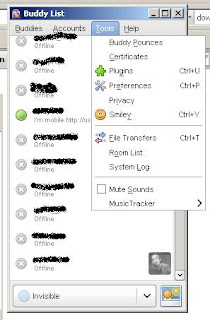
2. Then go to Pidgin select Tools-->Plugins
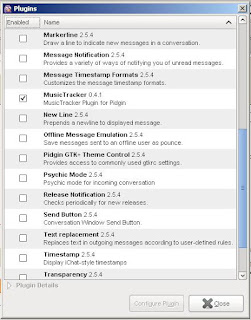
3. Then check for Music Tracker 0.4.1
4. It's Done!!

Note:
Currently supported players: Amarok, Rhythmbox, Audacious, XMMS, MPC/MPD, Exaile, Banshee, Quod Libet on Linux. Winamp, Windows Media Player (9+), iTunes, Foobar2000 (incomplete support) on Windows.


Read more...

Friday, April 24, 2009

How To Chat With Your Facebook

Chatting on your facebook?? Oh...it is so easy...:D
Just go to the bottom right side on your facebook workplace, if your not already online then clicking "Chat (Offline)".


Then it split out like this


When done and want to Go Offline just click Properties-->Go Offline


Read more...

Monday, February 2, 2009

Changed Your Firefox Themes

Firefox supported many themes. These are how we can change themes of firefox :

  • Start with open Tool > Add-ons menu

  • Search add ons by typing in "Personas"

  • Click install and wait, then restart your Firefox

  • After restart your Firefox, go to Tools > Personas

  • Click the themes that you want...


  • Here's the picture


    Read more...

    PICOL : New Technology Video Graphic

    PICOL stands for Pictorial Communication Language as a purpose for creating a standart symbols in electronic communication. It is a new type of info-graphic called PICOL Icon. PICOL is free to use and open to alter.


    History of the Internet from PICOL on Vimeo.


    Read more...

    Saturday, January 17, 2009

    General keyboard-only commands


    1. F1: Starts Windows Help

    2. F10: Activates menu bar options

    3. SHIFT+F10 Opens a shortcut menu for the selected item (this is the same as right-clicking an object

    4. CTRL+ESC: Opens the Start menu (use the ARROW keys to select an item)

    5. CTRL+ESC or ESC: Selects the Start button (press TAB to select the taskbar, or press SHIFT+F10 for a context menu)


    6. ALT+DOWN ARROW: Opens a drop-down list box

    7. ALT+TAB: Switch to another running program (hold down the ALT key and then press the TAB key to view the task-switching window)

    8. SHIFT: Press and hold down the SHIFT key while you insert a CD-ROM to bypass the automatic-run feature

    9. ALT+SPACE: Displays the main window's System menu (from the System menu, you can restore, move, resize, minimize, maximize, or close the window)

    10. ALT+- (ALT+hyphen): Displays the Multiple Document Interface (MDI) child window's System menu (from the MDI child window's System menu, you can restore, move, resize, minimize, maximize, or close the child window)

    11. CTRL+TAB: Switch to the next child window of a Multiple Document Interface (MDI) program

    12. ALT+underlined letter in menu: Opens the menu

    13. ALT+F4: Closes the current window

    14. CTRL+F4: Closes the current Multiple Document Interface (MDI) window

    15. ALT+F6: Switch between multiple windows in the same program (for example, when the Notepad Find dialog box is displayed, ALT+F6 switches between the Find dialog box and the main Notepad window)


    Read more...

    LinkWithin

    Related Posts Plugin for WordPress, Blogger...